This guide shows how to install mods, asset packs, and server plugins on a Hytale dedicated server.
Hytale is in Early Access and the modding ecosystem is moving fast. Always back up your server before making changes, and expect mods/plugins to break after game updates.
What’s the difference?
- Mods / Packs: Usually a
.zip(sometimes.jar) you drop into your server’smods/folder. These can include data changes, custom assets, gameplay tweaks, etc. - Assets (Asset Packs): Custom items/models/textures/data. In practice they’re commonly distributed as a pack/mod file and installed the same way (uploaded into
mods/). - Plugins: Server-side Java
.jarfiles that add commands, logic, metrics exporters, web APIs, etc. In Early Access these are often considered “early plugins” and may require a startup acknowledgement flag.
Before you install anything
- Stop your server (or shut it down if self-hosting).
- Back up at minimum:
universe/(worlds + player data)config.json,permissions.json,whitelist.json
- Confirm the mod/plugin supports your current Hytale version.
Where to get mods/plugins
Most server mods are distributed as downloadable .zip or .jar files. Always prefer the mod author’s official download page and read their install notes.
Install on a hosted server (LOW.MS or other)
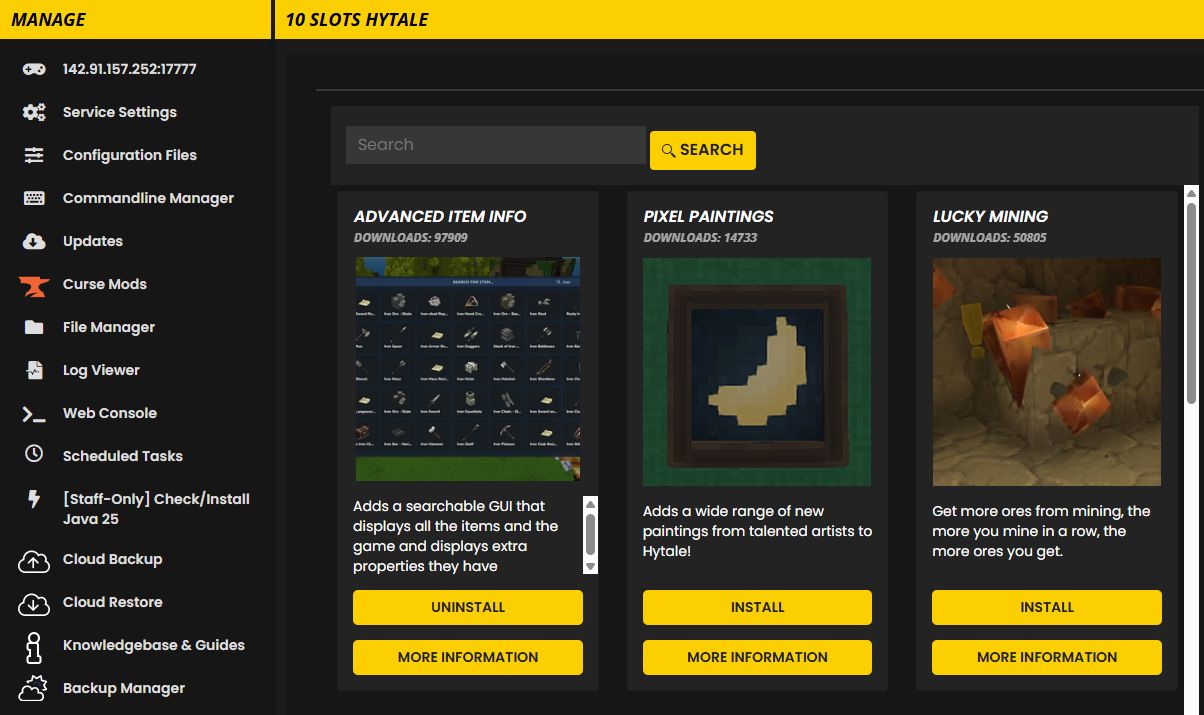
Method A: “Mod Manager” (if your host provides one)
If your panel has a Mod Manager:
- Stop the server.
- Click on "Curse Mods"
- Search and install the mod!
- Start the server and watch the console for load messages or errors.
Method B: File Manager / SFTP (works everywhere)
Stop the server.
Open File Manager (or connect via SFTP).
Navigate to the server’s mod folder:
- Common layouts:
mods/hytale/Server/mods/(some hosts)
- Common layouts:
Upload the mod file as-is (
.zipor.jar). Don’t unzip it unless the mod author explicitly says to.Start the server.
Installing plugins (hosted)
Plugins are usually .jar files.
- Many hosts load plugin jars from the same
mods/folder. - Some hosts separate “early plugins” into a dedicated folder (for example
earlyplugins/). If your host says to useearlyplugins/, follow that.
If your plugin is an early plugin, your server may also need a startup flag:
- Add this to your server startup arguments (or toggle the equivalent panel setting):
--accept-early-plugins
If you don’t have direct access to startup arguments in your panel, look for a setting like “Accept Early Plugins” or contact support.
Install on a self-hosted server (Windows / Linux)
- Stop the server.
- In your server root (where
HytaleServer.jaris), locate or create the folder:
mods/
- Copy your downloaded mod/plugin file into
mods/. - If you’re installing an early plugin, add the early plugin acknowledgement flag when starting the server:
java -jar HytaleServer.jar --assets PathToAssets.zip --accept-early-plugins
- Start the server and watch the console/logs.
Example (Linux)
mkdir -p mods
cp MyModPack.zip mods/
# restart server
Example (Windows PowerShell)
New-Item -ItemType Directory -Force -Path .\mods | Out-Null
Copy-Item .\Downloads\MyModPack.zip .\mods\
# restart server
How to confirm it worked
- Restarting is required — Hytale reads mods/plugins on startup.
- Check
logs/and the live console for:- load confirmations
- dependency/version errors
- crash stack traces (remove the most recent mod/plugin first)
Updating or removing mods/plugins
Update
- Stop the server.
- Replace the mod file in
mods/with the new version. - Start the server.
Remove
- Stop the server.
- Delete the mod/plugin file from
mods/. - Start the server.
If a world was created with a mod/plugin that adds required content, removing it may break that save. Keep backups.
Troubleshooting
Server won’t start after adding a mod
- Remove the last mod/plugin you uploaded and try again.
- Confirm the file is in the correct folder (
mods/or host-specific path). - Confirm you didn’t upload an extracted folder when the mod expects a single
.zip. - Verify the mod supports your server version.
Plugin isn’t loading
- Make sure it’s a
.jarfile. - If it’s an early plugin, ensure you’re launching with:
--accept-early-plugins
- If your host uses a separate folder (like
earlyplugins/), place it there.
Changes keep “reverting”
Hytale writes some config files when in-game actions occur. Do file edits while the server is stopped, then restart.
Early Plugins Explained
Early plugins are a special category of Hytale server plugins that run outside the standard plugin system. They perform low-level class modifications by injecting or altering bytecode during server startup.
Why do early plugins exist?
Early plugins can:
- Modify core server behavior that normal plugins can't access
- Add features before the standard plugin system loads
- Patch or extend internal server classes
Because of their power, Hytale requires you to explicitly acknowledge you want to run them.
How to enable early plugins
Add the --accept-early-plugins flag to your server startup command:
java -jar HytaleServer.jar --assets Assets.zip --accept-early-plugins
On hosted servers:
- Look for an "Accept Early Plugins" toggle in your server settings
- Or add the flag to your startup arguments if your panel allows it
Where to install early plugins
Some servers use different folders:
| Plugin Type | Folder |
|---|---|
| Regular mods/plugins | mods/ |
| Early plugins | earlyplugins/ (some hosts) or mods/ |
Check your hosting provider's documentation — some separate early plugins into their own folder.
Should I use early plugins?
Use early plugins if:
- You need functionality that regular plugins can't provide
- The plugin author specifically says it's an early plugin
- You trust the plugin source (early plugins have deep system access)
Avoid early plugins if:
- A regular plugin can do what you need
- You're unsure about the plugin's source
- You want maximum stability (early plugins can cause harder-to-diagnose issues)
Common early plugins
- LuckPerms — advanced permissions management
- Performance mods — server optimization plugins
- API extensions — plugins that expose new APIs for other plugins
Plugin Development Resources
If you're interested in creating your own Hytale plugins:
- Official template: Darkhax & Jared's plugin template for IntelliJ IDEA
- Requirements: Java 25, IntelliJ IDEA (Community edition works)
- Documentation: Hypixel Studios is working on public creator documentation
The Hytale modding ecosystem is still developing. Expect APIs and best practices to evolve during Early Access.